
Adding a server is a workspace admin action. Any member can use its tools once an admin turns them on for a worker.
Before you start
You need the server’s address. It usually ends in/mcp, for example https://mcp.linear.app/mcp. Vendors publish it under a heading like MCP server or Remote MCP.
Two addresses will not work:
- Anything that does not start with
https. - Anything running on your own machine, such as
http://localhost:3000/mcp. Alfera runs in the cloud and cannot reach your laptop. If this is you, the next section is the one you want.
If your server runs on your own machine
Servers you run yourself usually listen onlocalhost, which Alfera cannot reach. Give it a public address instead. Three steps, about five minutes.
1
Listen on more than localhost
Most servers bind to
127.0.0.1, which nothing outside the machine can reach. Start yours with a flag like --bind 0.0.0.0 or --host 0.0.0.0, and note the port.2
Give it a public address
A tunnel puts an It prints an address like If your server has a setting for its own public URL, set it to the tunnel address. Servers that build sign-in links need it.
https address in front of a port on your machine. ngrok is the usual choice and the free tier is enough.https://sunny-otter-1234.ngrok-free.dev. Paste that plus your server’s MCP path, normally /mcp:3
Make a token
A server on the internet needs a credential. Create one however your server does, and keep it for the next section.
Add the server
1
Open Integrations
In the Alfera app, click Integrations in the sidebar menu.
2
Choose MCP server
Under Connect anything, click MCP server.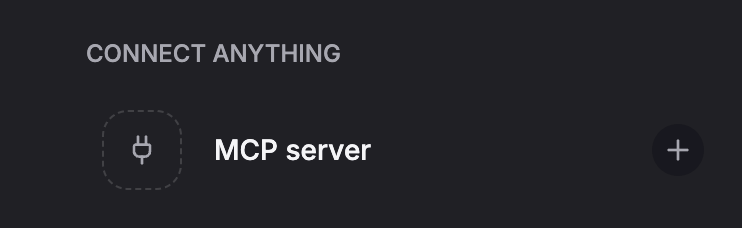
3
Paste the address
Enter the server’s URL and click Add server. Alfera contacts the server while you wait, and saves nothing until it answers.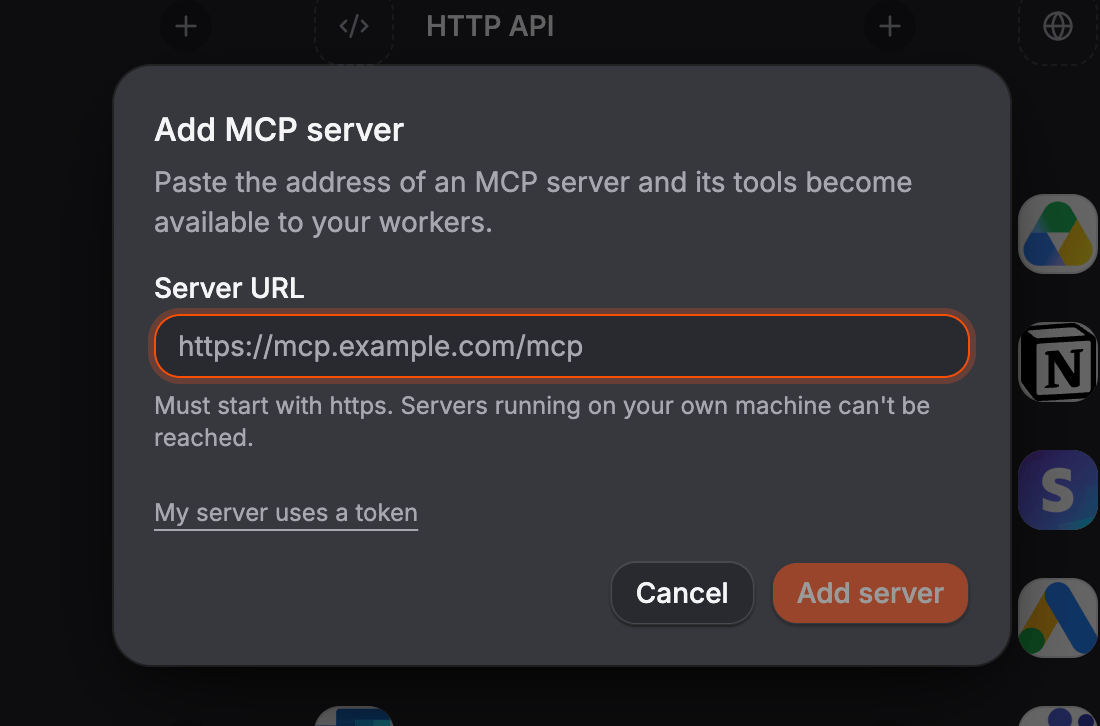
4
Finish however the server asks
Servers authenticate in three different ways. Each one is covered below.
The three answers
The server is ready
Open servers need no credential. Alfera reads the tool list straight away and tells you how many it added.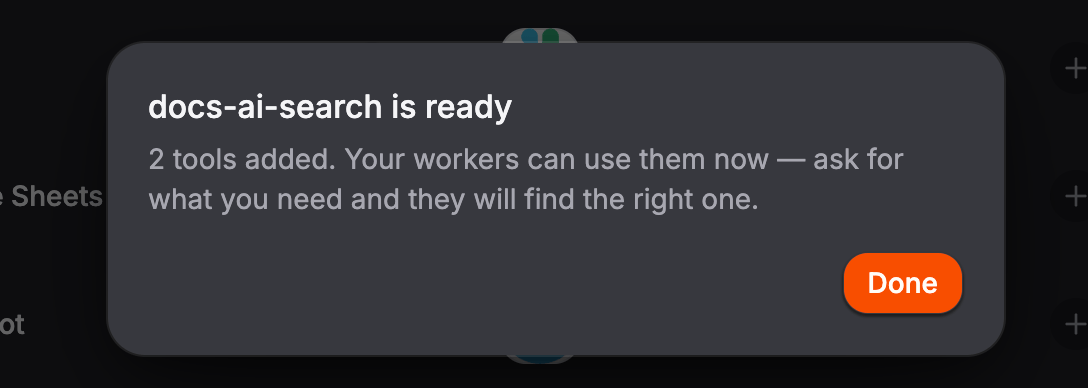
The server wants you to sign in
Most hosted servers, including Linear, Notion, Sentry and Stripe, authenticate with your own account. Alfera works out how, registers itself with the vendor, and gives you a link. Click Sign in. The vendor’s own consent screen opens in a new tab, showing Alfera as the application requesting access. Approve it there. You type your password on the vendor’s site, never in Alfera. When you return, the dialog closes on its own and the server’s tools appear.The server uses a token
Servers your own team runs usually authenticate with a token you generate yourself. In the dialog, click My server uses a token and paste it.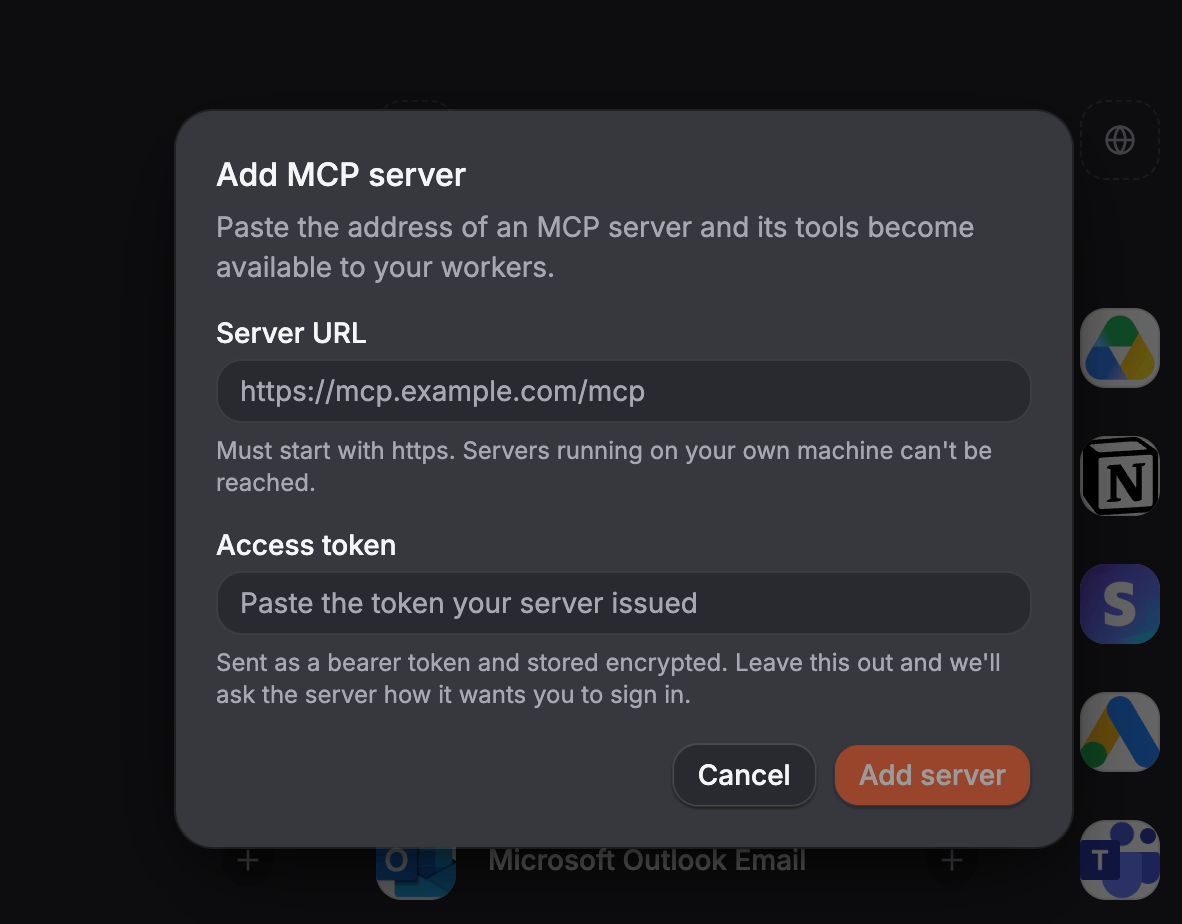
Add a server by asking
You can also ask a worker to do it, in chat or in Slack:Using the tools
There is nothing to switch on. A worker searches the catalogue when it needs something and finds the server’s tools alongside every other integration. Just ask:What Alfera does with a server you add
A server you paste has not been vetted by Alfera, so:- Tool descriptions are stored word for word. Your worker reads them, so a dishonest server can put instructions in front of it.
- A server’s safety claims are ignored. The protocol lets a server mark a tool read-only. Alfera treats every tool from an added server as one that changes something.
- Tools that disappear are retired, not deleted. Your history still points at them. An unreachable server changes nothing, because an outage is not proof a tool is gone.
- Addresses are checked before they are fetched. Alfera resolves the hostname, refuses private and internal addresses, and refuses redirects.
Troubleshooting
Alfera cannot reach the server
Alfera cannot reach the server
Open the address in a browser. Pasting a documentation page is the most common mistake. The address you want is the server itself, usually ending in
/mcp, and it does not render as a readable page.Running it yourself? Check the tunnel is still up, that the server was started with --bind 0.0.0.0 rather than the default localhost, and that you pasted the tunnel address plus /mcp, not the bare tunnel address and not localhost.Sign-in fails after the consent screen
Sign-in fails after the consent screen
Some servers need a specific plan, or an administrator to enable access, before they issue a token. Check the vendor’s requirements.If the message names a scope, the server is refusing a permission it advertises. Send the exact message to the vendor.
The server needs a client ID
The server needs a client ID
A few servers, GitHub among them, do not let applications register themselves. Contact us and we will configure it.
The server is added but a worker will not use its tools
The server is added but a worker will not use its tools
Name the server in your request, for example “use the Linear tools to…”. A worker searches by what it is trying to do, so a tool named for something else can be missed.Check the connection is still Active under Integrations. A server behind a tunnel or a laptop stops answering when that machine sleeps.
Alfera says the server is already in this workspace
Alfera says the server is already in this workspace
It is connected already. Find it in Integrations under the vendor’s name, not the address you pasted.
Servers to try
DeepWiki
https://mcp.deepwiki.com/mcpAnswers questions about any public GitHub repository. No sign-in.Context7
https://mcp.context7.com/mcpUp-to-date documentation for libraries and frameworks.Linear
https://mcp.linear.app/mcpIssues, projects, and cycles. Signs in with your Linear account.Notion
https://mcp.notion.com/mcpPages and databases. Signs in with your Notion account.Next steps
- Connect a Tool to add an integration Alfera already supports
- Approvals to control which actions wait for a human